
That sick feeling usually hits before the screen even stays black. Your laptop won’t power on, your work is due, family photos are sitting on the drive, and now you need to recover files from dead laptop hardware without making things worse. The good news is that a dead laptop does not always mean dead data. The bad news is that the next step matters.
Sometimes the fault is minor, like a failed screen, flat battery, damaged charge port or bad power rail. Sometimes it is the storage itself, the motherboard, or liquid damage creeping across the board. The right recovery path depends on what actually failed, and guessing can cost you the files you are trying to save.
First, work out what “dead” really means
A laptop can look dead for a few different reasons. It might show no lights at all, it might chime but never boot, or it might power up with a black display. Those are very different faults.
If you hear fans, keyboard lights or startup sounds, the laptop may not be dead at all. It could be a display issue, backlight failure, RAM fault or corrupted operating system. In that case, your files may still be sitting safely on the internal drive, and recovery is often straightforward.
If there is no sign of life – no charging light, no fan spin, no vibration, no boot sound – the issue is more likely tied to power delivery, battery failure, motherboard damage or liquid ingress. Data recovery is still possible in many cases, but the approach changes.
What to do before you try anything else
Start with the obvious checks, but keep them basic. Try a known-good charger if you have one that genuinely matches the laptop. Check whether the charging port feels loose or damaged. If the machine has had a recent drop, impact or spill, stop there and avoid repeated power attempts.
Repeatedly forcing a wet or shorted board to turn on can turn a recoverable job into a much harder one. The same goes for a drive that is already failing. If you hear clicking, grinding or repeated spin-up and spin-down noises from a mechanical hard drive, switch it off. That is not a problem you solve with persistence.
Do not install recovery software onto the same drive you are trying to save. Do not initialise a drive just because Windows asks. And do not keep restarting the laptop hoping it will suddenly cooperate. Every extra write, reboot or power cycle can reduce the recovery chances.
Can you recover files from a dead laptop at home?
Yes, sometimes. It depends on whether the storage drive is still healthy and accessible.
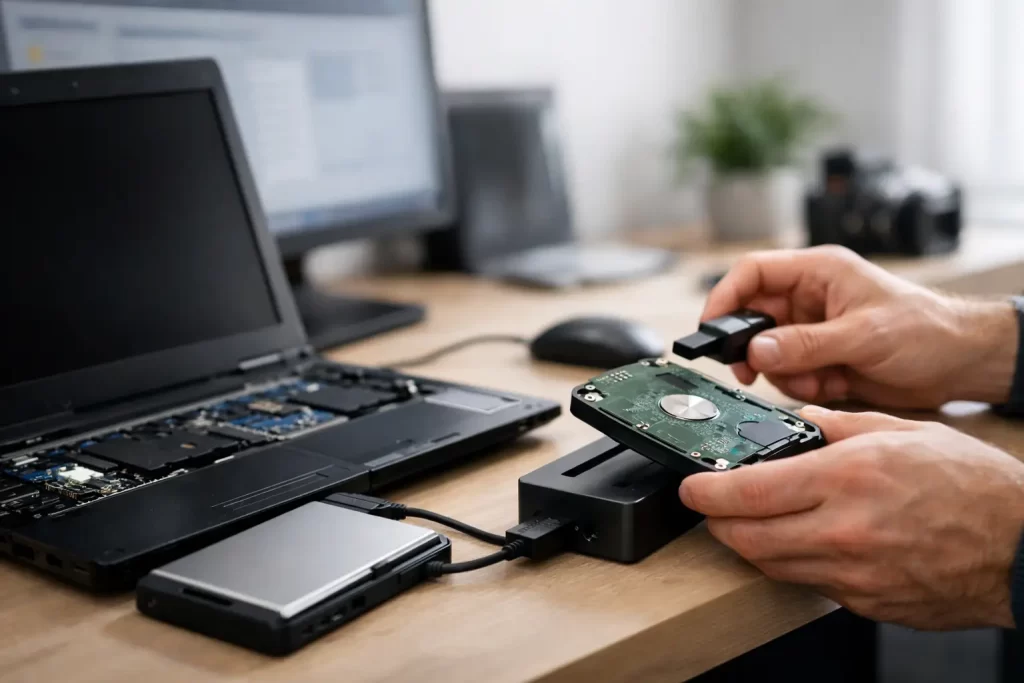
If the laptop itself has failed but the SSD or hard drive is fine, you can often remove the drive and connect it to another computer with the correct adapter or enclosure. That works well in cases where the motherboard has died but the storage has not.
This is more common on older Windows laptops and some larger machines with accessible storage bays. It is less simple on many newer laptops, especially ultra-thin models and some MacBooks, where the storage may be soldered to the board or paired with security hardware.
If you are comfortable opening electronics, know how to handle static safely, and can identify the correct drive type, a home recovery attempt can be reasonable. If the laptop has liquid damage, visible corrosion, burnt smell, board damage, or an encrypted drive you cannot unlock, it is better not to experiment.
Removing the drive: when it works and when it doesn’t
On a standard Windows laptop, there are usually two possibilities: a 2.5-inch SATA drive or an M.2 SSD. If you remove it cleanly and it mounts on another machine, you may be able to copy your files immediately.
The catch is that not every drive failure is visible straight away. A drive can partially mount, freeze during transfer, or disappear under load. If that happens, do not keep hammering it with retries. That kind of behaviour often points to media degradation, controller faults, or unstable NAND on an SSD.
MacBooks and premium ultrabooks are less forgiving. Many have proprietary storage layouts or soldered SSDs. In those cases, file recovery often means repairing the logic board enough to access the original storage, or working at board level to restore communication with the drive. That is specialist work, not a YouTube fix.
When the motherboard is dead but the data is still there
This is one of the most common scenarios. The laptop is lifeless, but the storage itself is intact. A failed charging IC, shorted capacitor, damaged power rail, blown fuse, or corrosion after water exposure can stop the machine from turning on while leaving the data untouched.
In these cases, the goal is not always a full repair. Sometimes the most efficient option is a temporary board-level fix that brings the laptop to life long enough to pull the data. That is where micro-soldering and logic board diagnostics matter. You do not need a cosmetic repair or a full rebuild if the priority is just getting your files back.
That trade-off is worth understanding. If the laptop is old and not economical to repair, a data-focused job can save time and money. If it is a newer machine, a proper repair may restore both the device and the files in one go.
Water damage changes the rules
A laptop that died after a spill should be treated differently from one that simply stopped booting. Water damage is unpredictable. Even if the machine seemed fine for a few hours or days, corrosion can continue spreading under chips and around connectors.
Rice does not fix that. Drying the outside does not clean conductive residue from the inside. And turning it back on “just to check” can bridge damaged areas and create new faults.
If you need to recover files from dead laptop water damage, speed matters. The sooner the device is assessed, cleaned and tested properly, the better the odds. In some cases the storage is unaffected. In others, board repair is needed before any data can be accessed. Waiting usually does not improve the outcome.
Passwords, encryption and BitLocker
Even when the drive is physically healthy, security can be the next hurdle. Many business laptops and modern consumer machines use encryption by default. Windows devices may have BitLocker enabled. Apple devices may rely on FileVault or security tied to the logic board and user credentials.
That means removing the drive is not always enough. You may still need the login password, recovery key, or the original board functioning well enough to authenticate access. This catches plenty of people out. They assume the data is “on the drive”, but protected storage is only useful if it can also be unlocked.
If the laptop belonged to a workplace, check with IT before trying anything. They may hold recovery keys you do not realise exist.
Signs you should stop and get professional help
There are a few red flags that should push the job out of the DIY category. One is any sign of liquid damage or corrosion. Another is a drive that clicks, vanishes, or causes a second computer to freeze when connected. A third is a laptop with soldered storage, board damage, or signs of a failed repair attempt.
Heat damage, pry damage, burnt components and broken connectors also matter. So does urgency. If the files are critical for business, study or legal records, the cheapest option is not always the smartest one. Failed DIY recovery often ends up costing more because the cleanest first shot has already been lost.
This is where a shop with data recovery and board-level capability makes a real difference. A standard repair counter may stop at “won’t turn on”. A technician who can handle micro-soldering, logic board faults and storage diagnostics can usually tell you whether the issue is power, board, drive, encryption, or all four.
What a professional recovery process usually looks like
A proper assessment starts with fault isolation. Is the laptop dead because of the charger, battery, charge circuit, motherboard, display or storage? Once that is clear, the path becomes much more efficient.
If the drive is healthy and removable, recovery may be as simple as secure extraction and transfer. If the board is the issue, the technician may carry out targeted logic board repair to restore access. If the drive itself is unstable, the focus may shift to imaging the data safely before it degrades further.
Good repair shops will also tell you when not to spend money. Sometimes the laptop is beyond economical repair but the files are recoverable. Sometimes the storage is encrypted and no one can ethically bypass missing credentials. Clear advice matters as much as technical skill.
For Darwin locals who need fast answers, this is the kind of job where speed and capability need to come together. iSmashed handles both everyday laptop faults and advanced board-level data recovery, which is exactly what you want when the device is dead but the files still matter.
How to improve your chances before failure happens again
Once your files are back, fix the bigger problem: relying on one machine. Use cloud sync for active work, keep an external backup for important folders, and make sure you actually know your passwords and recovery keys. If your laptop starts showing early warning signs like random shutdowns, charging issues, liquid exposure, or drive errors, do not wait for a total failure.
A dead laptop is stressful, but dead does not always mean lost. The best result usually comes from staying calm, not forcing the device, and choosing the recovery path that matches the actual fault rather than the first guess.