
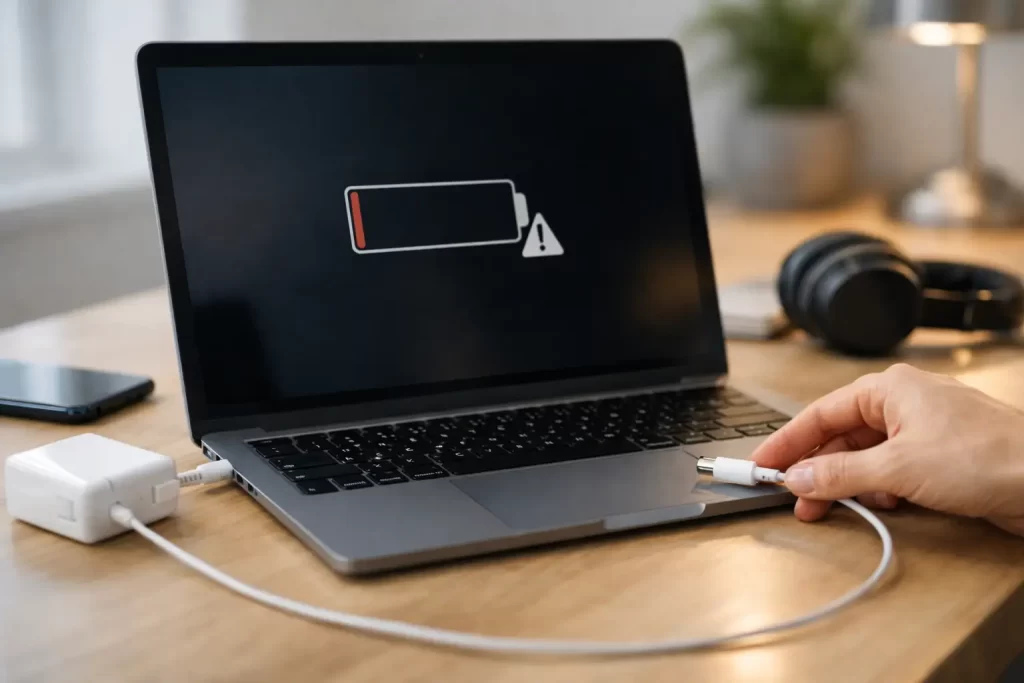
Your MacBook battery is on 3%, the charger is plugged in, and nothing is happening. If you need a MacBook not charging fix, the cause is usually one of three things – power delivery, battery failure, or board-level damage. The trick is working out which one quickly, so you do not waste hours on guesswork.
Some charging faults are simple. A damaged cable, dirty USB-C port, overheating, or a macOS power glitch can stop charging even when the laptop looks fine. Others are more serious, including liquid damage, worn battery cells, failed charging ICs, or damage to the logic board. That is where a proper diagnosis matters.
MacBook not charging fix – start with the obvious
Before assuming the battery is dead, check the charger, cable and power source properly. Many charging complaints come down to a faulty adapter or cable that still looks intact from the outside. If you have access to another genuine or high-quality compatible charger with the correct wattage, test that first.
Wall sockets can also be the problem. Try a different outlet and remove power boards or travel adapters from the setup if possible. A loose connection at the socket or low-quality adaptor can interrupt charging without making it obvious.
If your MacBook uses USB-C, inspect each port. It only takes a small amount of lint, dust or corrosion to stop the cable seating fully. If it uses MagSafe, check for debris on the connector and charging contacts. The light on a MagSafe charger can give clues too, but it is not a complete diagnosis on its own.
Check whether the MacBook is charging slowly or not at all
There is a difference between no charging and weak charging. A MacBook that gains power very slowly, only charges while shut down, or loses battery percentage while in use may still be receiving some power. That often points to the wrong charger wattage, battery degradation, excessive heat, or a power circuit issue.
This matters because the fix changes depending on the symptom. A flat battery that will not charge at all can indicate battery protection mode, severe cell wear or a charging circuit fault. A MacBook that says it is charging but barely increases in percentage may be dealing with battery health management, software limitation, or an adapter that cannot keep up with the machine.
If the battery symbol appears, disappears, or flips between charging and not charging, the fault is often intermittent. That usually means cable damage, a worn port, liquid residue, or failing board components rather than a simple settings issue.
Software checks that can solve a charging issue
Not every MacBook not charging fix involves parts. Sometimes macOS power management gets confused, especially after an update, battery health event, or thermal issue. Restarting the MacBook is the quickest test and it is worth doing before anything more technical.
Then check battery settings and system information. On newer macOS versions, battery health management and optimised charging can delay charging past certain percentages to reduce wear. That is normal behaviour. It is only a problem if the machine refuses to charge at all, powers off unexpectedly, or drains rapidly while plugged in.
You can also look for warning signs such as service battery messages, unexplained shutdowns, or the laptop only charging when the lid is closed. These signs suggest the issue is moving beyond software.
On older Intel models, resetting the SMC can sometimes restore normal charging behaviour because it controls low-level power functions. On Apple Silicon models, a standard shut down and restart handles most of the same recovery logic. If that does nothing, the fault is more likely hardware-related.
When the battery is the problem
MacBook batteries do not fail all at once every time. Sometimes they gradually lose capacity. Sometimes they swell, stop accepting charge, or trigger protection behaviour. A battery can still power the laptop briefly and still be faulty.
Common signs of battery failure include rapid drain, random shutdowns, overheating, trackpad lifting, or a chassis that no longer sits flat. Swelling is a priority issue because it can press against internal components and create further damage. If the case looks distorted, stop charging it and get it checked.
Battery replacement is often the right answer when the machine otherwise works normally and the charging system tests fine. The trade-off is simple – replacing the battery is cost-effective if the MacBook still suits your needs, but less appealing if the device already has multiple faults or is near end of life.
When the charging port is damaged
USB-C ports take a lot of wear. Repeated plugging, dust, moisture and physical stress can loosen the internal connection or damage pins. MagSafe connectors are generally more forgiving, but the port and surrounding circuitry can still fail.
A damaged charge port often causes inconsistent behaviour. You may need to hold the cable at an angle, switch between ports, or unplug and reconnect several times before it responds. That is not normal, and it usually gets worse over time.
In some cases, the port itself can be repaired or replaced. In others, the issue sits deeper on the board where the port connects to charging circuitry. That is why visual inspection alone is not enough.
MacBook not charging fix for liquid or board damage
If the MacBook has had any contact with liquid, even weeks ago, charging faults can show up later. Coffee, water, humidity and condensation can all leave corrosion behind. The laptop may keep working in some ways while power delivery slowly becomes unstable.
This is where board-level diagnostics matter. Charging on a MacBook depends on multiple components working together, including the USB-C controller, charging IC, battery communication lines, current sensing circuits and power rails across the logic board. If one stage fails, the machine may stop charging, fail to turn on, or only run from the charger.
These faults are not fixed with a new cable. They need proper testing, and in many cases micro-soldering repair. For customers in Darwin who need a fast answer, this is often the difference between an unnecessary replacement and a targeted repair that gets the laptop back into service sooner.
Signs you should stop troubleshooting at home
Basic checks are sensible. Repeated trial and error is not. If the MacBook gets hot around the charging area, smells unusual, shows signs of swelling, has visible liquid exposure, or keeps disconnecting from power, stop using it until it is assessed.
The same applies if the charger itself becomes very hot, the cable is frayed, or the machine only charges through one port intermittently. Continued use can worsen the damage and increase repair cost.
There is also the data risk. If the charging issue is tied to board failure, the next stage can be a no-power condition. If you have important work, study files or business data on the device, getting it diagnosed early is the safer move.
What a proper repair process should look like
A reliable MacBook charging repair starts with testing, not assumptions. The charger should be checked, the battery condition reviewed, the charge ports inspected, and the board tested for current draw and power rail faults. That tells you whether the fix is a battery replacement, port repair, charger issue, or logic board repair.
That process matters because two MacBooks with the same symptom can need completely different repairs. One may need a straightforward battery swap. Another may need board-level work on a charging IC or corrosion cleanup after liquid damage.
At iSmashed, this kind of fault is treated as a practical repair problem, not a mystery. Fast diagnosis, clear pricing, and the ability to handle both standard part replacement and micro-soldering repair means less downtime and fewer dead ends. If the issue is repairable, you want to know quickly. If it is not cost-effective, you should be told plainly.
The fastest way to avoid bigger damage
Do not keep forcing the charger in, running the battery flat, or hoping the issue sorts itself out after the fifth restart. A MacBook that is not charging is usually giving you an early warning. Sometimes that warning is minor. Sometimes it is the first sign of a failing battery or logic board fault.
The smart move is to check the easy things first, then act quickly if the problem persists. A clean diagnosis now is often cheaper than a more complex repair later. And if your laptop is how you work, study, book jobs or stay in touch, getting it fixed fast is usually worth far more than squeezing out one more unreliable day.