
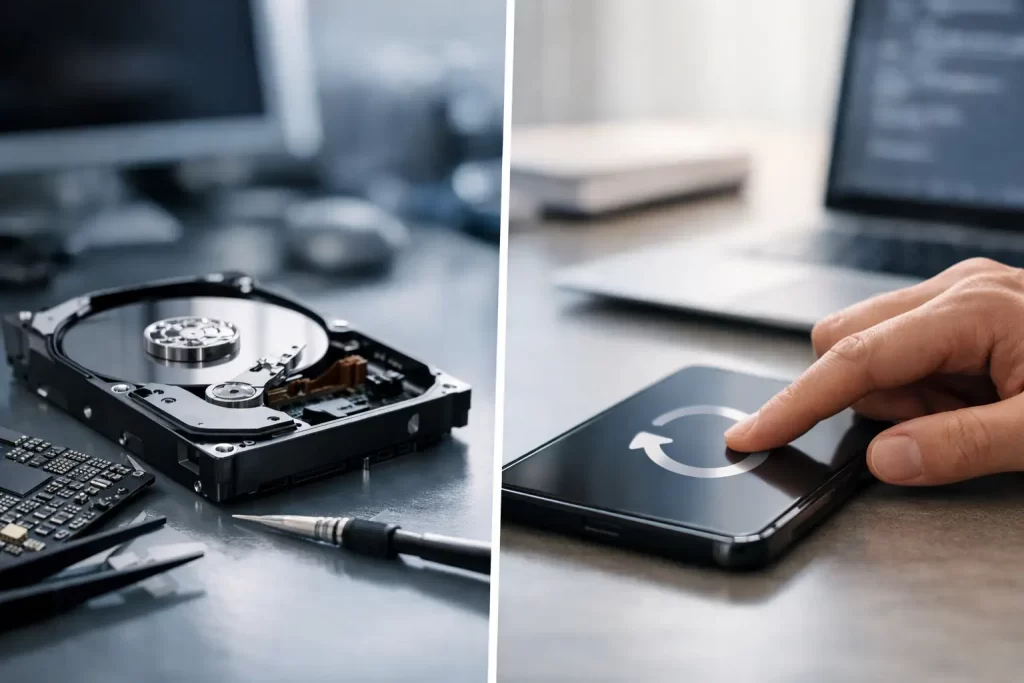
Your phone has started looping at the logo just before a flight. Your laptop asks for a recovery key you do not have. Or a water-damaged iPhone still turns on, but its screen is black. In these moments, data recovery versus reset is not a technical detail. It can decide whether your photos, work files, messages and business records remain recoverable.
A reset can solve genuine software faults. It can also remove the very data you need saved. The right first move depends on the device, the fault, whether you have a current backup, and whether the phone or computer can still be made to communicate long enough to copy your files.
Data recovery versus reset: the decision that changes the outcome
Data recovery means attempting to access and copy information from a device that is damaged, unstable, locked in a boot loop or no longer starting normally. The aim is not necessarily to return the device to perfect working order. Sometimes the repair is only needed long enough to get the data off safely.
A reset returns software settings to a previous state. That may mean restarting the device, resetting network settings, reinstalling an operating system, or performing a full factory reset. These actions are not equal. A normal restart is low risk. A factory reset can permanently erase local data.
The key question is simple: do you need anything stored only on the device? If the answer is yes, treat a factory reset as the last option, not the first one.
Modern iPhones, Android phones, Macs and Windows PCs use strong encryption. That protects your information from unauthorised access, but it can make recovery after an erase extremely difficult or impossible. Once the encryption keys are removed during a full erase, there may be no usable data left to extract, even if the storage chip itself is physically intact.
When a reset is the sensible fix
A reset is often the practical answer when you have confirmed your data is backed up and the problem is software-related. Common examples include an Android phone that remains slow after app clean-up, an iPhone with persistent settings issues, or a Windows laptop affected by corrupted system files.
Before choosing a factory reset, check what is already stored elsewhere. Look for recent cloud photo sync, contacts, notes, files, messaging backups and computer backups. Do not assume that seeing a few photos in the cloud means everything is covered. Videos, downloads, WhatsApp history, authenticator apps, locally saved documents and app-specific data may not be included.
For a Windows PC, the built-in reset option may offer to keep personal files. That can help with some software faults, but it is still not a substitute for a proper backup. A failed reset, damaged drive or interrupted update can complicate matters. Copy critical files first whenever the computer will stay on long enough.
A reset is also reasonable where privacy is the priority. If you are selling, recycling or giving away a working device, a factory reset after confirming your backup is complete is the correct move. Sign out of accounts, remove activation locks where required, and erase the device properly.
When you should stop and prioritise recovery
If the device contains irreplaceable information and you do not have a verified backup, avoid factory resetting it. This is especially true after liquid damage, a drop, failed charging, a boot loop, an interrupted update or a failed repair attempt.
Water damage is a clear example. A phone may appear dead because corrosion has affected the charge circuit, display circuit, battery line or logic board. Resetting is not possible if it will not start, but repeated charging attempts and powering it on can make the damage worse. The better approach is to stop using it, keep it disconnected from power, and arrange a proper assessment.
A boot loop is another fault where rushing can cost you data. Your phone may keep restarting because of a failing battery, storage issue, damaged charging circuit, sensor fault or motherboard-level problem. A software restore may fix some cases, but it can also erase the device. Board-level diagnostics can sometimes identify and repair the underlying fault sufficiently to allow a backup before any reset is considered.
The same applies to laptops. A MacBook that will not boot could have a failing SSD, battery issue, liquid-damaged board, corrupt operating system or display fault. A Windows laptop may be stuck in automatic repair because of file corruption, a damaged drive or an update problem. Reinstalling the operating system before checking the drive and securing accessible data is a gamble.
The reset types people commonly confuse
Not every reset wipes a device. Knowing the difference prevents unnecessary panic and unnecessary data loss.
A force restart simply shuts down and restarts a frozen device. It does not normally erase your content. Resetting network settings removes saved Wi-Fi networks and related settings, but should leave photos and files untouched. Resetting all settings changes preferences without deliberately wiping personal content.
A recovery-mode update may reinstall system software while attempting to preserve data. It is less destructive than an erase, but there is still risk if the device has underlying storage or hardware faults. A restore, erase, factory reset or fresh operating system installation is the high-risk option because it removes local information or replaces the existing file system.
On Android, menu names and behaviour vary by manufacturer. Samsung, Google, Oppo and other brands can handle recovery tools differently. On Apple devices, options can also change depending on whether the issue involves iOS, activation, storage or a damaged logic board. Do not choose an option because a forum post says it worked for someone with a similar symptom. Similar symptoms do not always mean the same fault.
What to do before any reset
Start with the least destructive checks. If the device is stable enough, connect it to a trusted computer or Wi-Fi network and attempt a backup. Confirm that the backup completes and includes the information that matters. If you can unlock the device, copy priority files first rather than waiting for a full backup.
For phones, prioritise recent photos and videos, contacts, notes, messaging data, downloads, two-factor authentication access and any work apps that store files locally. For computers, prioritise Desktop, Documents, Downloads, accounting data, creative project files, browser profiles and any folders used by specialist software.
Keep your passcode, device password and account details available. Encryption means a technician cannot reliably access a modern device without the correct credentials. This is normal and protects your privacy. The goal is to repair the fault, then let you unlock the device and approve the transfer or backup yourself where possible.
Do not repeatedly enter incorrect passcodes. Do not run random “repair” programs that promise one-click recovery. Do not install updates or use erase functions simply to see whether they work. If the device is overheating, has been exposed to water, smells burnt, will not charge properly or keeps restarting, stop testing it. Those symptoms can point to hardware failure, not a software problem.
How professional recovery can avoid an unnecessary wipe
Data recovery is often a repair-first process. A technician may need to replace a damaged screen so you can enter your passcode, repair a charge port to power the device, fit a known-good battery, or carry out micro-soldering on a logic board. The aim is to restore enough function to access the encrypted data in its original environment.
This is why recovery after water damage or motherboard failure is different from recovering deleted files from an old USB drive. On a modern phone, moving a storage chip to another board rarely produces a usable result because the data is tied to the original device hardware and security system. The practical route is usually repairing the original board.
Recovery outcomes cannot be guaranteed. Severe corrosion, damaged storage, repeated failed boot attempts and prior factory resets all reduce the chances. A professional assessment should be clear about that risk, the likely fault and whether a repair is being attempted for normal use, data access, or both.
Make the decision based on what you cannot replace
If your device is backed up and the fault is clearly software-related, a reset may be the fastest route back to a working phone or computer. If the files are not backed up, or there are signs of physical or board-level failure, protect the data first and leave the erase option until recovery has been assessed.
For Darwin customers facing a dead phone, boot-looping iPad or laptop that will not start, iSmashed can assess the fault before you make a destructive call. Bring the device in as it is, keep it off if it has water damage, and bring any passcodes or account details needed for authorised access. The best result is often not a clever reset. It is making the right first move before the data is gone.