
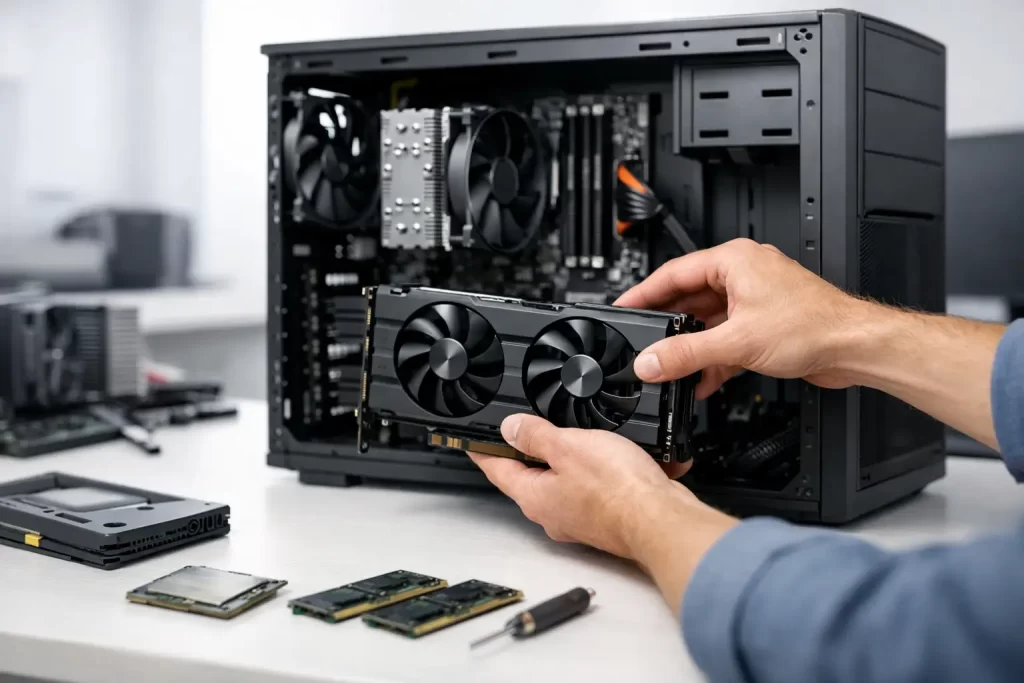
That slow boot, the stutter when you open too many tabs, the fan noise under load – most of the time, it does not mean your computer is finished. A smart guide to PC hardware upgrades starts with one question: what exactly is holding the machine back? Get that right, and you can spend less, keep your data, and make an ageing PC feel useful again.
For most people, the best upgrade is not the most expensive one. It is the part that fixes the bottleneck you actually notice. If your system takes forever to start, more storage speed may matter more than a new processor. If games are choppy, the graphics card may be the obvious weak point. If the machine freezes under everyday work, memory could be the issue. The trick is matching the upgrade to the fault, not buying parts based on hype.
Guide to PC hardware upgrades: start with the bottleneck
Before ordering anything, pay attention to the symptoms. Slow startup and long load times usually point to an old hard drive. Sluggish multitasking often suggests not enough RAM. Poor gaming performance, screen tearing, or low frame rates usually come back to the GPU. Random shutdowns can indicate overheating or a failing power supply, and both need proper diagnosis before any upgrade goes ahead.
This matters because not every slow PC needs a full rebuild. Plenty of desktop and laptop systems are held back by one or two ageing components. Replacing the right part can be cost-effective. Replacing the wrong one just adds cost and frustration.
Compatibility is where many upgrade plans go off track. A new graphics card might not fit the case. A faster SSD may need the right motherboard slot. Extra RAM has to match what the system supports. A processor upgrade can be limited by socket type, BIOS support, cooling, and power delivery. On paper, a part can look perfect. In the real machine, it may not work at all.
The upgrades that usually deliver the biggest improvement
SSD upgrades for speed
If the computer still runs on a mechanical hard drive, moving to a solid-state drive is one of the clearest improvements you can make. Boot times drop. Programmes open faster. File transfers feel less painful. Even older PCs can feel far more responsive with this one change.
There is a trade-off, though. An SSD improves access speed, not raw processing power. If you edit large videos, play modern games, or run heavy design software, the machine may still feel limited elsewhere. It solves one major bottleneck, not every one.
For many users in Darwin who just want a work or study machine to stop dragging, this is often the best value move.
RAM upgrades for multitasking
Not enough memory makes a computer feel constantly under pressure. Browsers, spreadsheets, video calls, and background apps all compete for space. When RAM runs short, the system starts relying more heavily on storage, and performance drops hard.
An upgrade from 8GB to 16GB can make a noticeable difference for general use, office work, and light creative tasks. For gaming, streaming, or heavier productivity, that extra headroom often helps. But more is not always better. If your usage is basic, jumping straight to 32GB may not give you much real-world benefit.
GPU upgrades for gaming and visual work
If your goal is better gaming performance, smoother rendering, or support for higher-resolution displays, the graphics card is usually the key upgrade. This is where results can be dramatic, but it is also where compatibility and budget issues show up fast.
A stronger GPU may require a better power supply, more airflow, and enough physical clearance in the case. It can also be limited by the processor. That is called a bottleneck, and it matters. Pairing a high-end graphics card with an older CPU can leave performance on the table.
For some users, especially on older prebuilt PCs, a GPU upgrade sounds simple but turns into a multi-part job.
CPU upgrades when processing power is the issue
Processor upgrades make sense when the machine struggles with demanding workloads such as video editing, CAD, virtual machines, code compilation, or newer games that lean heavily on CPU performance. The problem is that CPU upgrades are rarely plug-and-play unless the platform supports them.
Motherboard socket, chipset, BIOS version, cooling capacity and power requirements all come into play. In some cases, a CPU upgrade is worthwhile. In others, the platform is old enough that money is better spent on a newer board, memory, and processor together.
That is why proper diagnosis matters before buying parts.
Laptop upgrades are different
A guide to PC hardware upgrades should be honest about laptops: they are far less flexible than desktops. Some allow RAM and SSD upgrades. Others have soldered memory, limited storage options, or designs that make access difficult without the right tools and care.
There is also more risk. Internal connectors are delicate. Battery disconnection matters. A rushed upgrade can damage the board, strip screws, crack clips, or lead to post-repair faults that are harder to trace than the original issue.
If the laptop has heat issues, random crashes, charging faults, or liquid exposure, upgrading parts without fixing the underlying problem first can waste money. A faster SSD will not solve motherboard corrosion. Extra RAM will not repair thermal shutdowns.
Don’t ignore the support parts
People naturally focus on the headline parts – CPU, GPU, RAM, storage. But some of the most important upgrade decisions sit around them.
The power supply is a big one. If it is underpowered, poor quality, or failing, it can cause instability and put new components at risk. Cooling matters too. Better parts create more heat, and if airflow is poor, performance can drop through thermal throttling. Dust build-up, dried thermal paste, and blocked vents can make a system seem underpowered when it is really overheating.
Then there is the motherboard. It decides more than most users realise. Expansion slots, RAM limits, storage interface support, processor compatibility, and BIOS features all come back to the board. If that foundation is too limited, your upgrade path can be much shorter than expected.
When an upgrade is better than a repair – and when it isn’t
Sometimes the right call is an upgrade. Sometimes the right call is a repair first.
If the PC is healthy but slow for current workloads, upgrading makes sense. If the issue is a failing charging circuit, damaged DC jack, liquid damage, overheating, corrupted storage, or motherboard fault, then fitting new hardware without fixing the underlying defect is not a smart spend.
This is especially true after power surges, failed DIY attempts, or water damage. At that point, diagnostics matter more than shopping. Fault-finding at board level can save data, confirm what is actually damaged, and stop you replacing good parts around one bad component.
That practical approach is what separates a useful upgrade from a messy one.
What to check before you spend
Before approving any upgrade, check the age of the system, the exact model of motherboard or laptop, current specifications, physical space, power requirements, and whether the operating system use actually justifies the spend. Also think about your goal. Do you want faster startup, better gaming, smoother office work, more storage, or another year or two out of the machine before replacement?
The answer changes the recommendation.
A modest office PC might only need an SSD and RAM. A gaming tower might need GPU, PSU, and cooling upgrades together. A business laptop with soldered memory may be limited to storage only. An older machine with multiple faults may not be worth heavy investment at all.
That is not bad news. It is just the difference between spending carefully and spending twice.
The best upgrade is the one that fits how you use the PC
There is no single upgrade plan that suits every computer. The best result comes from matching the part to the problem, checking compatibility properly, and being realistic about platform limits. Fast, affordable upgrades are possible, but only when the diagnosis is right from the start.
If you are unsure whether your PC needs more memory, faster storage, a graphics upgrade, thermal work, or proper board-level diagnostics, getting it checked before you buy parts can save time and money. A good machine does not always need replacing. Often, it just needs the right fix at the right time.