
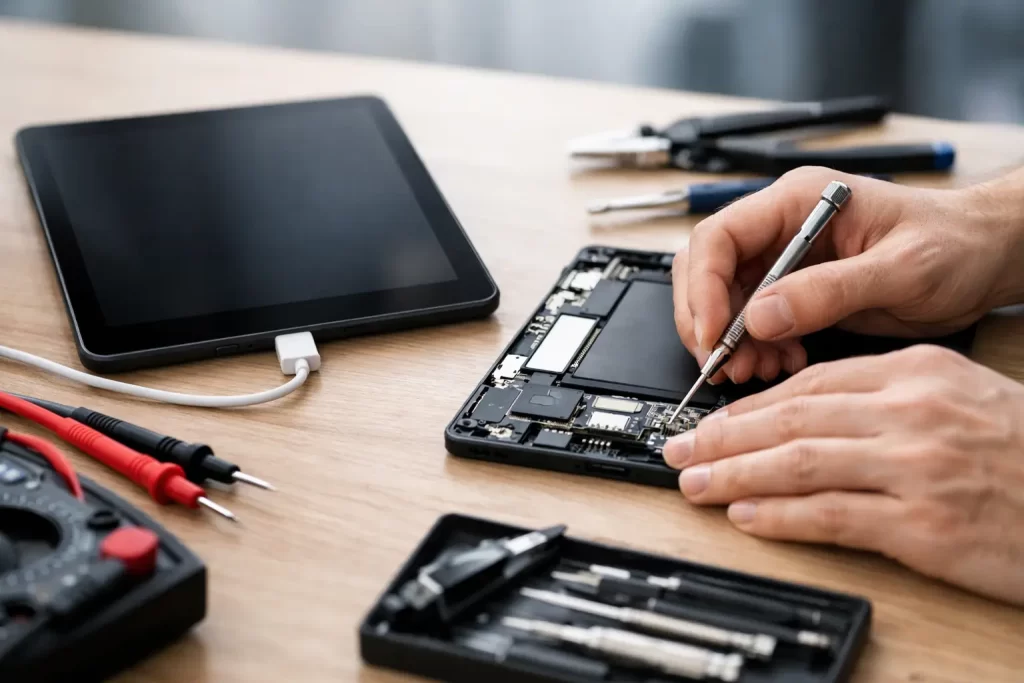
Your tablet is on 2%, you plug it in, and nothing happens. No charging icon. No vibration. No sign of life. If you are searching for how to repair tablet charging issues, the first thing to know is this: not every charging fault is a dead battery, and not every fix should start with taking the device apart.
Some charging problems are simple. A worn cable, lint packed into the port, or a software crash can stop a tablet from charging properly. Others are deeper – damaged charge pins, battery failure, liquid exposure, or a board-level fault that needs proper diagnostics. The trick is knowing which is which before you waste time or make the repair more expensive.
How to repair tablet charging issues without making them worse
Start with the basics, but do them properly. A lot of people try three random chargers, get no result, and assume the tablet is finished. That is not a test. You need to isolate the fault.
Try a known-good charging cable and wall adapter that match the tablet’s power requirements. A cheap or low-output charger may power a phone but fail to charge a larger tablet, especially if the battery is deeply depleted. Plug directly into a wall socket rather than a laptop or power board if possible. Then leave it connected for at least 20 to 30 minutes. Some tablets with fully drained batteries will not show any sign of life straight away.
If there is still nothing, inspect the charging port closely under good light. Dust, pocket fluff, sand and corrosion are common in Darwin conditions, and even a small amount of debris can stop the cable from seating correctly. If the cable feels loose, drops out easily, or only charges when held at an angle, that points more towards port damage than a charger problem.
Be careful here. Do not jam metal tools into the port. That is how charging pins get bent or shorted. If you can see loose debris near the opening, remove it gently with a non-metal tool and a steady hand. If the port looks wet, green, blackened or physically cracked, stop there. That is already beyond a safe DIY clean.
Rule out a software or power-management crash
Tablets can sometimes appear dead when the issue is actually a frozen operating system or a failed charging handshake. This is especially common after an update, after the battery has drained to zero, or when a non-genuine charger has been used.
Force restart the tablet while it is connected to power. The button combination depends on the model, but the goal is the same – trigger a hard reboot rather than a normal shutdown. If the screen comes back and starts charging, the problem may have been temporary power-management lock-up rather than hardware failure.
Wireless charging, where supported, can also help with diagnosis. If the tablet will charge wirelessly but not through the port, the battery and charging circuit may still be functional, and the issue is more likely the charge port or dock connector assembly. If it charges neither way, that leans more towards battery, board, or liquid-damage problems.
The most common hardware faults
Charging issues usually fall into four categories: charger and cable failure, charge-port damage, battery wear, or motherboard faults. The symptoms matter.
A damaged cable or adapter is the cheapest fix and the easiest to miss. If the charger gets hot, cuts in and out, or only works with certain devices, replace it first. Good diagnostics always start with the external accessories.
A worn or damaged charging port is one of the most common tablet repairs. Repeated plugging and unplugging stresses the internal pins. Children using tablets while they charge can make this worse, because the cable gets pulled sideways and tears the port from the board or damages the flex. In some models, the charge port is a separate replaceable part. In others, it is soldered directly to the board, which means micro-soldering is required.
Battery failure is another common cause. If the tablet only charges to a certain percentage, drains quickly, gets hot while charging, or shuts off as soon as the charger is removed, the battery may be degraded. Batteries are consumable parts. After enough cycles, they stop holding charge properly. The repair here is usually straightforward, but swollen batteries need urgent attention and should not be ignored.
Then there are board-level faults. If the tablet shows no charging current, has already had a port replacement with no result, or suffered liquid damage, the issue may be in the charging IC, power-management circuit, filter lines, or connector pads on the logic board. This is where proper bench testing matters. Replacing parts blindly gets expensive fast.
When DIY repair makes sense – and when it does not
If your tablet simply has a dirty port or a failed cable, you can often sort it out yourself. If the repair involves opening the device, replacing the battery, or changing the charge port, it depends on the model and your experience.
Many modern tablets are heavily glued, use fragile display assemblies, and hide screws under covers or screens. Opening them without the right heat control and tools can crack the display, damage fingerprint sensors, or tear flex cables. That turns a charging repair into a screen repair as well.
Charge-port replacement is also not always a basic parts swap. On some Samsung, Lenovo and generic Android tablets, the port sits on a daughterboard and is relatively straightforward. On many iPads and premium tablets, the port may be integrated in a way that requires advanced disassembly or micro-soldering. If the pads are lifted, the connector is torn off, or there is corrosion under the port, you are no longer in simple repair territory.
How technicians diagnose charging faults properly
A proper charging diagnosis goes beyond plugging in a cable and hoping for the best. A technician will usually test with known-good accessories, inspect the port under magnification, and measure current draw using a USB power meter or bench equipment. That tells you whether the tablet is negotiating charge, pulling power, or doing nothing at all.
From there, the repair path becomes clearer. If current draw is normal but the tablet still will not boot, the battery may be too far gone or the device may have another fault. If there is no current draw, the problem could be a damaged port, broken charge line, blown component, or a power-management issue. If current spikes and drops, that may point to a short or board instability.
This is why professional diagnostics save time. They reduce guesswork. They also stop you replacing a battery when the real problem is a corroded connector or failed charging IC.
Signs you should book a repair now
Some symptoms mean stop testing and get it looked at. If the charging port is loose, pushed in, burnt, or visibly broken, continuing to plug in a cable can cause more damage. If the tablet has been exposed to water, steam, humidity or a drink spill, corrosion may already be spreading on the board. If the tablet gets unusually hot while charging, that can indicate battery or board failure and should be treated seriously.
The same applies if another repair attempt has already failed. We often see tablets that had a battery fitted elsewhere, only for the real issue to be a board fault all along. At that point, proper diagnostics and, where needed, micro-soldering are what get the device charging again.
For customers who need the device back quickly for work, study or keeping the kids occupied, speed matters as much as the repair itself. A fast turnaround, clear pricing and a warranty-backed repair make more sense than losing another day chasing trial-and-error fixes.
How to prevent tablet charging issues coming back
A repaired tablet still needs good charging habits. Use a quality charger with the correct output. Do not force the cable into the port. Avoid using the tablet heavily while it is plugged in, especially if the cable is bent sideways. Keep the port clean and dry, and do not leave the device in a hot car where battery wear accelerates.
If the charge feels intermittent, deal with it early. A port that only works when wiggled rarely fixes itself. It usually gets worse, and the longer it is left, the greater the chance of connector or board damage.
At iSmashed, we see the full range – simple charging-port cleans, battery replacements, and advanced board-level faults that need micro-soldering. The right fix depends on what has actually failed, not what seems most obvious.
If your tablet is not charging, the fastest path is not always the most dramatic one. Start with careful checks, stop before you cause more damage, and if the signs point to hardware failure, get it tested properly. A small charging fault caught early is usually cheaper, faster and far less painful than a dead tablet when you need it most.