
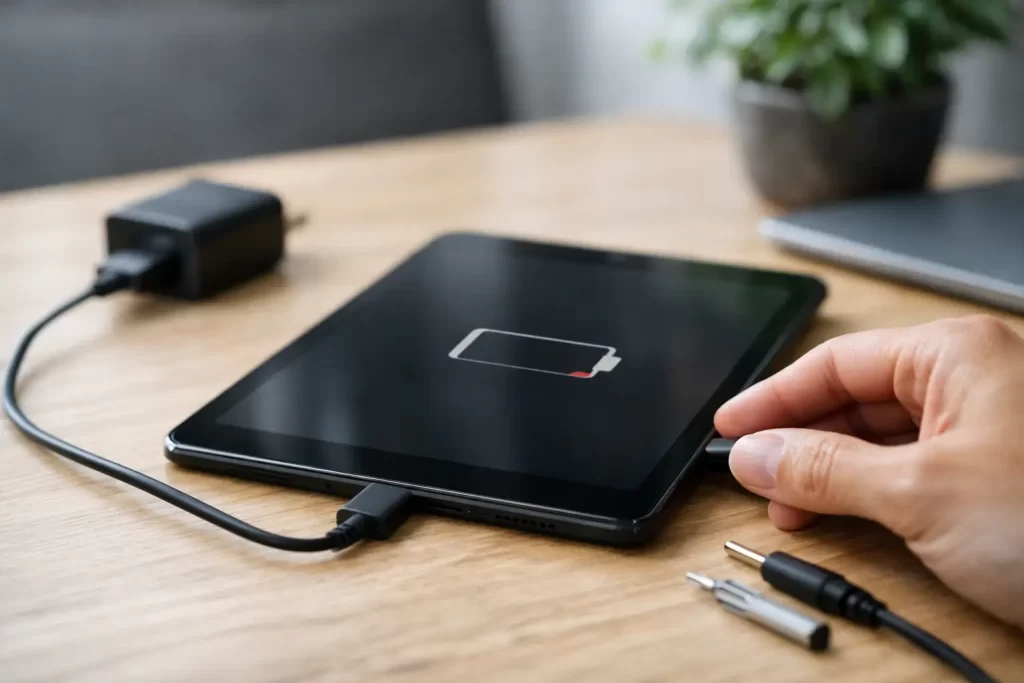
You plug your tablet in, wait for the battery icon to move, and nothing happens. No charge symbol, no percentage increase, no sign of life. If you are asking why is my tablet not charging, the cause is usually something fairly simple like a faulty cable or blocked port – but not always. In some cases, the issue sits deeper in the battery circuit, charge port, or logic board, especially after drops, liquid exposure, or cheap charger use.
A tablet that will not charge is not just annoying. It can stop work, study, check-ins, streaming, EFTPOS use, and school apps in one hit. The good news is that a proper charging fault can usually be narrowed down quickly if you know what to look for.
Why is my tablet not charging even with the charger connected?
The most common reason is that power is not actually reaching the battery. That can happen because the wall adaptor is weak, the cable is damaged, the charging port is dirty or loose, or the tablet is drawing power too slowly to recover. You might also be dealing with battery failure, software crashes, or board-level faults.
Not every charging problem looks the same. Some tablets show the charging icon but still lose battery. Some only charge when held at an angle. Others appear fully dead, even though the battery is not the main fault at all. That difference matters, because a cable problem is a cheap fix, while a damaged charge management chip or lifted port pads needs a proper repair.
Start with the obvious – power source, cable and adaptor
Before assuming the tablet itself has failed, test the charger setup properly. Try a different wall socket first. Then swap the cable and adaptor for known working ones that match your tablet’s power needs.
This step gets skipped all the time. A worn cable can look fine from the outside but fail internally near the connector. A low-quality adaptor may power a phone but not provide stable output for a larger tablet. Some tablets, especially iPads and larger Android models, need a charger with enough wattage to charge properly. If the charger is too weak, the tablet may hold steady or drain slowly while plugged in.
If you usually charge through a laptop, car charger, power board, or public USB point, test a proper wall charger instead. Those other sources can be inconsistent and sometimes too weak for a tablet battery.
Check the charging port for lint, corrosion or damage
A blocked charging port is one of the most common faults we see. Pocket lint, dust, food crumbs and general debris can build up inside the port and stop the connector seating correctly. The cable may feel plugged in while the pins are only making partial contact.
Look inside the port under a bright light. If you can see compacted debris, do not jab around aggressively with metal tools. That can bend the internal pins or short the connection. Corrosion is another issue, especially in Darwin conditions where moisture, humidity and liquid exposure are common. A corroded port may charge intermittently, slowly, or not at all.
If the cable feels loose, wobbly, or only works when pushed in a certain direction, the port may be physically damaged. That can mean worn pins, cracked solder joints, or separated pads on the board. At that point, cleaning alone will not solve it.
Why is my tablet not charging after it went flat?
Sometimes a deeply discharged battery takes longer to respond than people expect. If the battery has dropped extremely low, the tablet may need 15 to 30 minutes on a working charger before the screen shows any charging sign.
That said, a battery that has been left flat for too long can degrade badly. Lithium batteries do not like being stored empty. If the cell voltage drops too far, the tablet may struggle to start charging again, or the battery may have become unstable and need replacement.
This is especially common in tablets that sit unused in drawers, backup work devices, kids’ tablets, or seasonal travel devices. The charger is not always the issue. Sometimes the battery has simply aged out.
Battery wear is a real cause
Tablet batteries do not last forever. Over time they lose capacity, become less stable, and can stop accepting charge properly. You may notice the tablet charges slowly, jumps in battery percentage, shuts down unexpectedly, or drains fast after unplugging.
In older devices, battery wear can show up as a charging fault before the battery fails completely. The tablet may appear to reject charging accessories when the real problem is that the battery is no longer handling current the way it should.
A swollen battery is a more urgent version of this. If the screen is lifting, the back cover is separating, or the device feels warped, stop charging it and get it checked. Continued charging can create more damage and a safety risk.
Software and firmware can also interrupt charging
Not every charging issue is hardware. A frozen operating system, failed update, or power management glitch can stop the tablet from displaying normal charging behaviour. In some cases, the device is charging but the battery indicator is not updating correctly. In others, the software has crashed hard enough that the device appears dead.
A forced restart can help, depending on the brand and model. If the tablet powers back on and starts charging normally, the issue may have been temporary. If software is the cause, it often comes with other symptoms such as boot loops, overheating, freezing, or random restarts.
There is a trade-off here. Basic restart and update steps are reasonable at home, but if the tablet has important photos, business files, or school data on it, be careful with resets. A charging fault combined with storage or board issues can turn into a data problem if handled the wrong way.
Liquid damage changes the diagnosis
If your tablet stopped charging after water, coffee, rain, steam, or even heavy humidity exposure, assume internal damage until proven otherwise. Charging a liquid-damaged device can worsen corrosion and short damaged components.
Liquid damage does not always kill a tablet straight away. Sometimes it starts as slow charging, accessory errors, or intermittent connection before the device fails completely. Corrosion can affect the port, battery connector, charging IC, filters, and surrounding board lines.
If moisture is involved, skip the rice. It does not remove corrosion and it does not repair damaged circuits. Powering the tablet on repeatedly to “check if it works” can make things worse.
When the problem is on the board
If you have tested a good charger, checked the port, ruled out software, and the tablet still will not charge, the fault may sit on the mainboard. This is where proper diagnostics matter.
Common board-level charging faults include damaged charging ICs, blown filters, shorted capacitors, battery line issues, and torn pads after a rough port replacement. On some devices, the port itself is only one part of the chain. If power enters the board but is not processed correctly, replacing the cable or battery will not fix it.
This is also why a charging issue after a drop can be deceptive. The screen may be fine and the outer frame may only have a small dent, but the impact can crack solder joints or affect internal power lines. Advanced repair work such as micro-soldering is often the difference between replacing parts blindly and fixing the actual fault.
What you can safely try at home
Keep it simple. Test a known good charger and cable, use a wall outlet, inspect the port with a light, and leave the tablet connected for at least 30 minutes if the battery was deeply flat. If the device is responsive, try a forced restart.
Stop there if the port is loose, the tablet has had liquid exposure, the battery looks swollen, or the device gets hot while charging. Those signs point to a fault that needs professional attention rather than trial and error.
Be careful with online charging hacks. Freezer tricks, random button combinations, and forcing sharp tools into the port often create a more expensive repair than the original fault.
When to book a repair
If your tablet only charges at an angle, charges very slowly, shows no response with known good accessories, or has stopped charging after a drop or water exposure, it is time for proper diagnostics. The same applies if the battery drains while plugged in, the tablet gets unusually warm, or the port feels physically damaged.
A good repair assessment should tell you whether the issue is the charger, battery, port, or motherboard before parts are replaced. That matters for cost, turnaround time, and avoiding unnecessary work. Some charging faults are straightforward and fast. Others need board-level repair, especially when previous shops have already attempted a port replacement or the device has corrosion.
At iSmashed, this is the kind of fault we deal with every day across iPads, Samsung tablets and other major brands – from simple charge-port repairs to battery replacement and micro-soldering for logic board charging faults.
If your tablet has stopped charging, the key is not to guess for too long. A quick check can save you from a dead battery becoming a dead board, and that usually means less downtime, less cost, and a better chance of keeping the data that matters.