
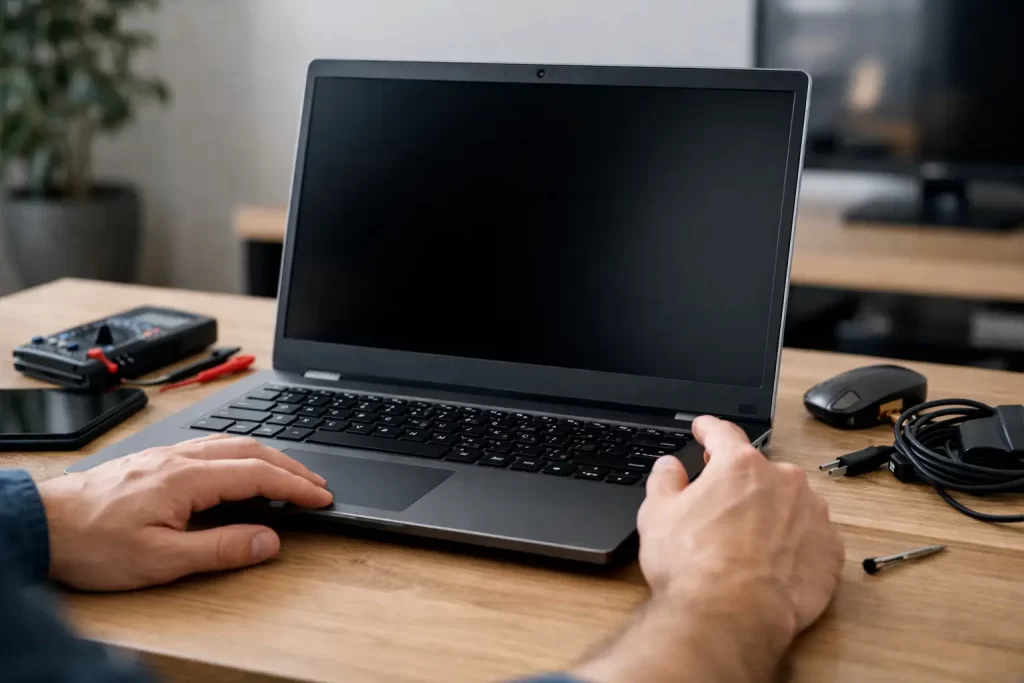
You press the power button, expect the usual startup sound or screen glow, and get nothing. If you are searching why won’t laptop turn on, the problem can be as simple as a flat battery or as serious as a failed motherboard. The key is not guessing. A few quick checks can tell you whether you are dealing with a charging issue, a screen fault, a power circuit problem, or a deeper logic board failure.
For most people, the real issue is downtime. Work stops, study gets delayed, and files you need right now suddenly feel out of reach. That is why it helps to separate safe first checks from the faults that need proper diagnostics.
Why won’t laptop turn on? Start with the basics
Before assuming the laptop is dead, check the obvious power path. It sounds simple, but chargers, wall sockets and batteries fail more often than people expect. A laptop that shows no lights at all may not be receiving power, even if the device itself is otherwise fine.
Start with the charger. Look for frayed cable sections, bent connectors, scorch marks or a loose fit at the charging port. If you have access to a compatible charger, test with that. On many Windows laptops and some USB-C models, a faulty charger is one of the fastest wins.
Next, try a different power point. If the charging light comes on, leave the laptop connected for at least 15 to 30 minutes before trying again. A deeply discharged battery can sometimes take a little time before the system responds.
If the battery is removable, remove it, connect the charger and try powering on from mains only. If it starts this way, the battery may be the fault. If the battery is internal, do not open the machine unless you are confident doing so. Modern laptops are easy to damage if the wrong tool slips.
Signs your laptop has power but still will not boot
A laptop does not always have to be completely dead to appear dead. Sometimes the power rail is active, but the machine is failing during startup. That difference matters, because it changes the likely repair.
If you see a charging light, hear a fan spin, or notice the keyboard backlight flicker, power is reaching the board. In that case, the fault may involve the display, RAM, SSD, BIOS, or motherboard-level components rather than the charger alone.
A black screen is a common example. The laptop may actually be on, but the display is not working. Shine a torch at the screen and look closely. On some failed backlight units, you can faintly see an image. That points more towards a screen or backlight circuit issue than a total power failure.
You can also connect the laptop to an external monitor if the model supports it. If the external display works, the machine is likely booting and the issue is isolated to the screen assembly, backlight, display cable or graphics output to the panel.
Common reasons a laptop will not turn on
The cause depends on what happened before the failure. Did it stop after a drop, liquid spill, power surge, overheating issue, or random shutdown? Those details usually narrow things down fast.
Flat or failed battery
Batteries wear out. Some swell, some stop holding charge, and some fail without much warning. If the laptop only works on charge or does not respond until it has been plugged in for a while, the battery is a strong suspect.
That said, replacing the battery will not help if the charging circuit has failed. This is where proper testing matters. Fitting parts based on guesswork can waste time and money.
Faulty charger or charge port
A damaged charger tip, failed adapter brick or worn charge port can all stop power from reaching the board. USB-C charging adds another layer, because not every charger delivers the correct wattage or negotiates power properly.
Charge port faults are especially common on laptops that are plugged in and moved around a lot. Loose ports, broken solder joints and bent centre pins can all interrupt charging. In some cases, this is a straightforward port replacement. In others, the damage extends to the board itself.
Screen or backlight failure
If the laptop seems to turn on but nothing appears on screen, do not rule out a display fault. Cracked panels, failed backlights, damaged LCD cables and graphics-related board faults can all produce a black screen.
This is one of those faults where the laptop feels dead even when it is not. The distinction matters if you need urgent data access, because your files may still be intact.
RAM or storage issues
Faulty RAM can stop a laptop from completing its power-on sequence. Some machines will beep, flash a code, or power cycle repeatedly. Others will simply sit on a black screen.
A failed SSD can also prevent booting, though it usually does not stop basic power response. If the system powers on but hangs on a logo screen or goes straight to recovery errors, storage becomes more likely.
Overheating and motherboard damage
Dust buildup, old thermal paste, blocked vents and repeated heat stress can damage components over time. On some models, failed MOSFETs, charging ICs, power management circuits or shorted capacitors on the board can leave the laptop completely unresponsive.
This is where standard part swapping stops and board-level diagnostics begin. Micro-soldering and logic board repair are often the difference between a recoverable machine and an unnecessary replacement.
Liquid damage
Spills do not always kill a laptop instantly. Sometimes the machine keeps working for a few hours or days, then refuses to turn on once corrosion spreads across power lines or connector pins.
If liquid is involved, stop trying to power it on repeatedly. Every attempt can worsen a short. Fast assessment gives you a better chance of repair and, if needed, data recovery.
What you can safely try at home
There is a limit to what makes sense without tools, but a few steps are low risk and worth trying. Disconnect all accessories first – USB devices, docking stations, SD cards, external monitors and printers. A faulty peripheral can sometimes interfere with startup.
Then perform a hard reset. On many laptops, that means disconnecting power, holding the power button for 15 to 30 seconds, then reconnecting the charger and trying again. This can clear a stuck power state.
If your model allows memory access without major disassembly and you know what you are doing, reseating removable RAM can help. If you do not, leave it alone. Breaking clips, damaging the board or mixing incompatible modules creates a second problem.
The main rule is simple: if there are signs of liquid, burning smell, heat near the charging port, or visible physical damage, stop there. Those are repair-bench faults, not trial-and-error faults.
When professional repair is the better move
If the laptop shows no charging light, no fan activity, and no response with a known-good charger, you are likely past the basic stage. The same applies if it turns on briefly then cuts out, gets stuck in a boot loop, or only works in certain charger positions.
At that point, proper diagnostics save time. A technician can test the charger, battery, DC-in circuit, board power rails, RAM, SSD and display path without guessing. That matters because many power faults look the same from the outside.
It also matters for cost. A laptop that appears dead may only need a charge port or battery. Another may have a shorted power rail requiring board-level repair. Until it is tested, both faults can present as total failure.
For Darwin customers, this is where a local repairer with laptop, MacBook and motherboard-level capability makes a difference. Shops that only handle basic screen swaps may stop at part replacement. A workshop that can handle micro-soldering, logic board repair and data recovery gives you more realistic options before you write the device off.
If your data matters, do not keep forcing it on
People usually keep pressing the power button because they need access to work files, uni documents, photos or business records. That is understandable, but repeated power attempts on a failing board can make recovery harder, especially after liquid exposure or electrical shorts.
If the data is important, mention that early. The repair approach may change. Sometimes the priority is not full laptop repair first – it is stabilising the board long enough to recover the data safely.
Why fast diagnosis matters
Laptop faults tend to get more expensive when they are ignored. A loose charge port can damage the board. A swollen battery can distort the case or trackpad. Corrosion can spread. Heat issues can keep stressing components until more than one part fails.
That is why speed matters. Not rushed guesswork – proper diagnosis, done quickly. A clear answer lets you decide whether to repair, recover data, or replace the machine without losing more time than necessary.
If your laptop will not turn on, start with the safe checks, stop if there are warning signs, and get it tested before a small fault becomes a bigger one. A dead laptop is frustrating. A clear path to getting it running again is what counts.